Settings, explained
A tour of every settings panel — how to change business type, timezone or currency safely, words & units, payments, receipts, Somali labels, access. Set once, applies everywhere.
Settings is one calm place: a rail of panels on the left, one focused panel at a time. The rule behind all of it: choose a thing once and the whole system uses it — the till, receipts, reports and your public page all follow.
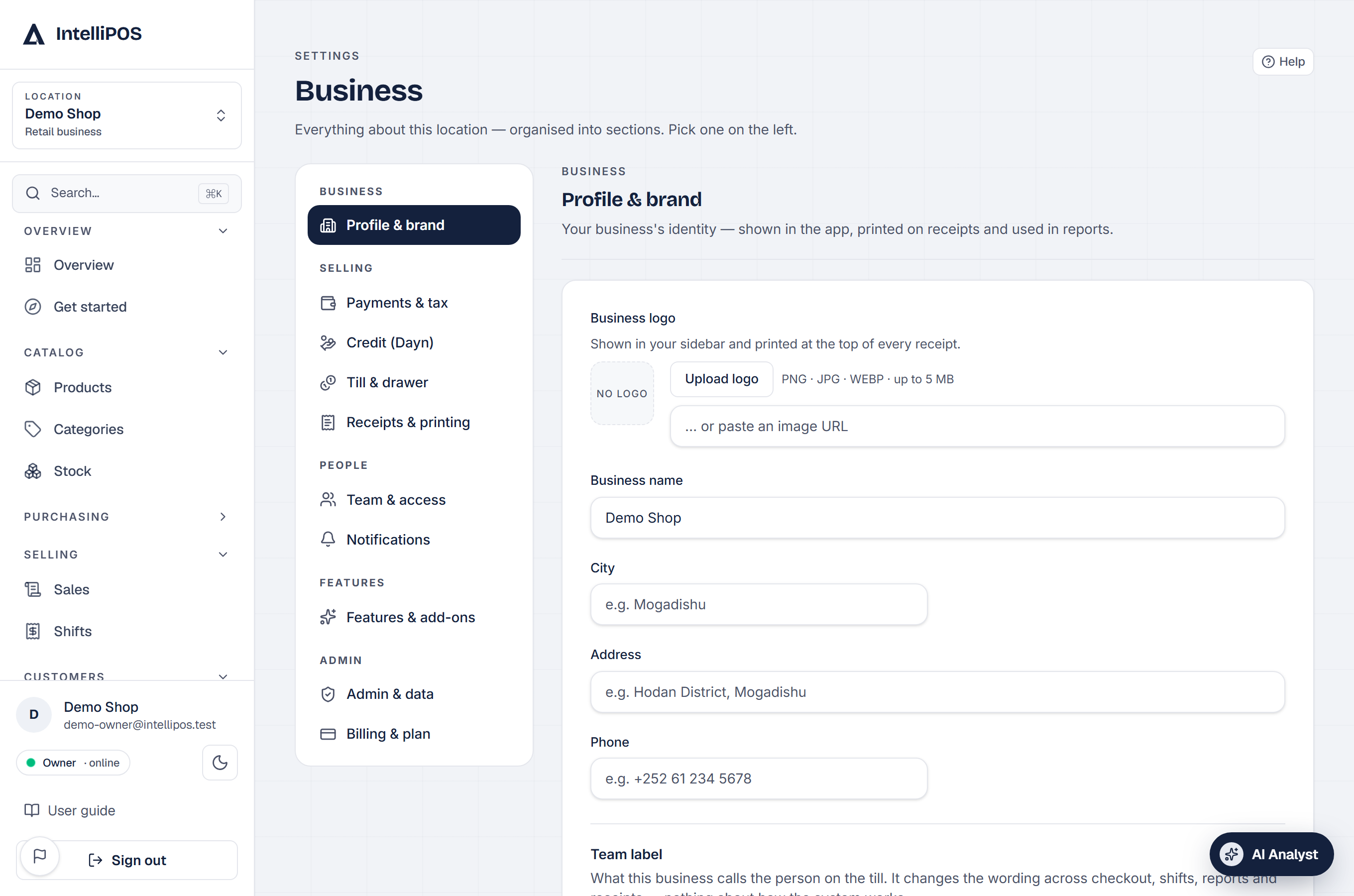
Profile & brand
Your name, logo and contact details — shown in the app, printed at the top of every receipt, and used on your public page automatically. Your opening hours live here too, with Holidays & special days right under them: add a date once ("Closed for Eid") and your website, Google, table bookings, online orders and the AI Analyst all follow it.
Business profile — change your business type, country, timezone or currency
Four settings shape every screen, so they sit together at the bottom of Business:
- Business type — your menus, tabs and wording (tables and a kitchen for a restaurant, stock for a shop, members for a gym). You can change it any time.
- Timezone — when each sales day starts and ends, and the time on receipts. You can change it any time.
- Country and currency — you can change them until your first sale. After that they touch tax, payment options, phone numbers and past amounts, so tap Ask IntelliPOS to change it and we make the change with you.
Pick the new value and tap Review change. Nothing changes until you see what will happen:
- Past sales and their totals always stay exactly as they are. A new timezone only regroups which day a late-night sale falls on in reports.
- If something is in the way, it's named with where to fix it — for example open bills (settle or void them) or an open shift (close it; closing a shift also sends any payments a till took offline). Switching to a type that counts stock asks you to enter counts for items at 0 first, so no sale is ever refused.
- Then Yes, change it. Open tills reload by themselves at a quiet moment — never in the middle of a sale — and pick up the change.
IntelliPOS makes changes through exactly the same checks, so a change can never strand a bill or a payment. Your web address (QR codes, menu link, website) follows your business name until your first visitors arrive, then stays fixed so nothing you've printed ever breaks.
Words & units
Say it the way your team and customers do. Pick once, and every screen follows — the till, the kitchen, the floor board, printed slips, reports and the AI Analyst, online and offline:
- Orders without a table — To go or To go.
- The table's slip before paying — Bill or Check.
- Weights & measures — Metric (kg, g, l) or US (lb, oz) first when you add a product or an ingredient.
- Week starts on — Saturday, Sunday or Monday, for the staff schedule.
Each row saves by itself. The option marked Default is what your country uses; choosing it again puts you back to following your country.
Payments & tax · Customer credit · Till & drawer
Which payment methods your tills offer (cash and card), your tax / service charge, how customer credit behaves, and drawer options. Set a tax here and every total, receipt and report uses the same math.
Changing your tax rate
Type the rate exactly as your tax office writes it — up to four decimals, so 8.875% stays 8.875%. When you save:
- Every open till picks it up by itself within half a minute — the counter, the tables, the front desk and the customer screen. Nobody reloads or re-enters anything.
- A till that hasn't caught up yet never charges the old rate. The sale stops before any money moves and the till shows the new total — check it with the customer and charge again. A changed price, or a product switched to tax-exempt, is handled the same way at the counter.
- Sales rung offline keep the rate the customer paid. Change the rate while a till is offline and the sales it rang are recorded at the rate they were rung at, on the day they were rung. Each one is noted in the activity log.
- Under each rate, Settings shows who last changed it, and when. If the rate changed during a month, the Tax page and the accountant download split that month's tax by rate.
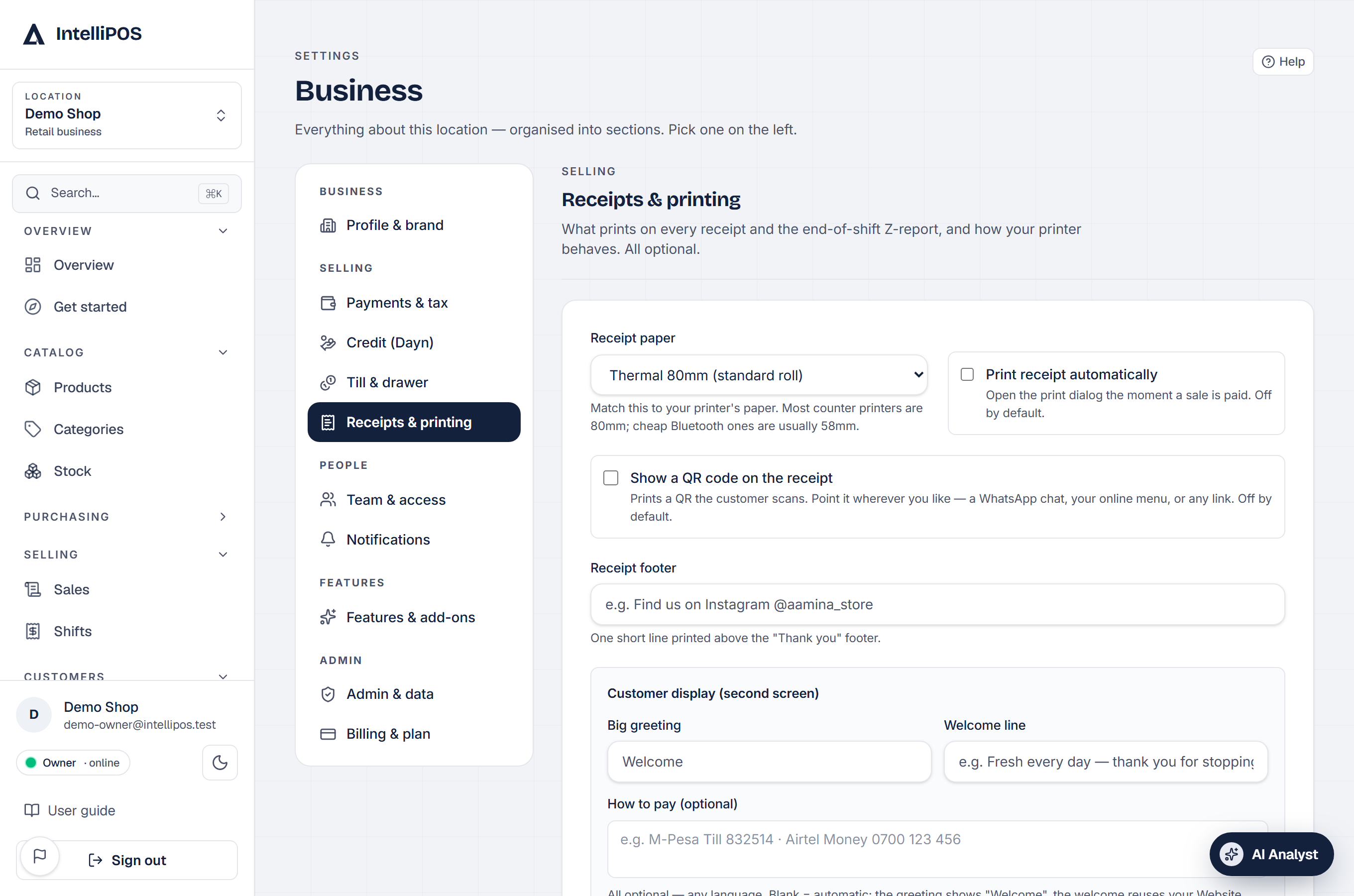
Receipts & printing
The message at the bottom of every receipt (a thank-you, your return policy, how to pay you), and your printer's paper width so slips come out the right size.
Team & access · Notifications
Powers you can give managers, one switch each: correct a shift's cash, open Reports, record expenses, reverse credit collections, use the AI Analyst, see Team Pay, handle incidents and edit membership plans. Net profit and expenses stay owner-only.
Notifications: the daily summary email is off until you switch it on; the Z-report email when a shift closes is on, with an option to copy managers.
Manager access — including whether managers can open Reports (net profit and expenses stay owner-only) — staff PINs for switching and unlocking the till, and which alerts reach you.
Features & add-ons
Turn features on or off for your business. This is also where Somali labels · Soomaali lives: switch it on and Somali appears next to English across the dashboard, till, receipts and your public page.
Admin & data · Billing & plan
Security & two-factor, tax, locations, the audit log, Import your books (customers, suppliers, members), Export everything, and your plan. Products are imported on Products → Import. Locations have their own page — see Running more than one location — and two-factor sign-in lives under Security.
Money is never silent: every billing event — subscribing, switching plans, adding or removing an add-on's charge, a scheduled cancellation, a failed payment, your trial ending — is confirmed by email, and your Billing page always shows the itemised bill. If a subscription ends, nothing is deleted: the till keeps selling, your data stays, and choosing a plan again switches everything back on instantly.
Tip: if you can't find a setting, it's probably deliberate — anything the system can work out on its own (like currency from your country) is never asked twice.
Settings is one calm place: a rail of panels on the left, one focused panel at a time. The rule behind all of it: choose a thing once and the whole system uses it — the till, receipts, reports and your public page all follow.
Profile & brand
Your name, logo and contact details — shown in the app, printed at the top of every receipt, and used on your public page automatically. Your opening hours live here too, with Holidays & special days right under them: add a date once ("Closed for Eid") and your website, Google, table bookings, online orders and the AI Analyst all follow it.
Business profile — change your business type, country, timezone or currency
Four settings shape every screen, so they sit together at the bottom of Business:
- Business type — your menus, tabs and wording (tables and a kitchen for a restaurant, stock for a shop, members for a gym). You can change it any time.
- Timezone — when each sales day starts and ends, and the time on receipts. You can change it any time.
- Country and currency — you can change them until your first sale. After that they touch tax, payment options, phone numbers and past amounts, so tap Ask IntelliPOS to change it and we make the change with you.
Pick the new value and tap Review change. Nothing changes until you see what will happen:
- Past sales and their totals always stay exactly as they are. A new timezone only regroups which day a late-night sale falls on in reports.
- If something is in the way, it's named with where to fix it — for example open bills (settle or void them) or an open shift (close it; closing a shift also sends any payments a till took offline). Switching to a type that counts stock asks you to enter counts for items at 0 first, so no sale is ever refused.
- Then Yes, change it. Open tills reload by themselves at a quiet moment — never in the middle of a sale — and pick up the change.
IntelliPOS makes changes through exactly the same checks, so a change can never strand a bill or a payment. Your web address (QR codes, menu link, website) follows your business name until your first visitors arrive, then stays fixed so nothing you've printed ever breaks.
Words & units
Say it the way your team and customers do. Pick once, and every screen follows — the till, the kitchen, the floor board, printed slips, reports and the AI Analyst, online and offline:
- Orders without a table — Takeaway or To go.
- The table's slip before paying — Bill or Check.
- Weights & measures — Metric (kg, g, l) or US (lb, oz) first when you add a product or an ingredient.
- Week starts on — Saturday, Sunday or Monday, for the staff schedule.
Each row saves by itself. The option marked Default is what your country uses; choosing it again puts you back to following your country.
Payments & tax · Credit (Dayn) · Till & drawer
Which payment methods your tills offer (cash, card, and mobile money where your country uses it), your tax / service charge, how customer credit behaves, and drawer options. Set a tax here and every total, receipt and report uses the same math.
Receipts & printing
The message at the bottom of every receipt (a thank-you, your return policy, how to pay you), and your printer's paper width so slips come out the right size.
Team & access · Notifications
Powers you can give managers, one switch each: correct a shift's cash, open Reports, record expenses, reverse credit collections, use the AI Analyst, see Team Pay, handle incidents and edit membership plans. Net profit and expenses stay owner-only.
Notifications: the daily summary email is off until you switch it on; the Z-report email when a shift closes is on, with an option to copy managers.
Manager access — including whether managers can open Reports (net profit and expenses stay owner-only) — staff PINs for switching and unlocking the till, and which alerts reach you.
Features & add-ons
Turn features on or off for your business. This is also where Somali labels · Soomaali lives: switch it on and Somali appears next to English across the dashboard, till, receipts and your public page.
Admin & data · Billing & plan
Security & two-factor, tax, locations, the audit log, Import your books (customers, suppliers, members), Export everything, and your plan. Products are imported on Products → Import. Locations have their own page — see Running more than one location — and two-factor sign-in lives under Security.
Money is never silent: every billing event — subscribing, switching plans, adding or removing an add-on's charge, a scheduled cancellation, a failed payment, your trial ending — is confirmed by email, and your Billing page always shows the itemised bill. If a subscription ends, nothing is deleted: the till keeps selling, your data stays, and choosing a plan again switches everything back on instantly.
Tip: if you can't find a setting, it's probably deliberate — anything the system can work out on its own (like currency from your country) is never asked twice.
Settings is one calm place: a rail of panels on the left, one focused panel at a time. The rule behind all of it: choose a thing once and the whole system uses it — the till, receipts, reports and your public page all follow.
Profile & brand
Your name, logo and contact details — shown in the app, printed at the top of every receipt, and used on your public page automatically. Your opening hours live here too, with Holidays & special days right under them: add a date once ("Closed for Eid") and your website, Google, table bookings, online orders and the AI Analyst all follow it.
Business profile — change your business type, country, timezone or currency
Four settings shape every screen, so they sit together at the bottom of Business:
- Business type — your menus, tabs and wording (tables and a kitchen for a restaurant, stock for a shop, members for a gym). You can change it any time.
- Timezone — when each sales day starts and ends, and the time on receipts. You can change it any time.
- Country and currency — you can change them until your first sale. After that they touch tax, payment options, phone numbers and past amounts, so tap Ask IntelliPOS to change it and we make the change with you.
Pick the new value and tap Review change. Nothing changes until you see what will happen:
- Past sales and their totals always stay exactly as they are. A new timezone only regroups which day a late-night sale falls on in reports.
- If something is in the way, it's named with where to fix it — for example open bills (settle or void them) or an open shift (close it; closing a shift also sends any payments a till took offline). Switching to a type that counts stock asks you to enter counts for items at 0 first, so no sale is ever refused.
- Then Yes, change it. Open tills reload by themselves at a quiet moment — never in the middle of a sale — and pick up the change.
IntelliPOS makes changes through exactly the same checks, so a change can never strand a bill or a payment. Your web address (QR codes, menu link, website) follows your business name until your first visitors arrive, then stays fixed so nothing you've printed ever breaks.
Words & units
Say it the way your team and customers do. Pick once, and every screen follows — the till, the kitchen, the floor board, printed slips, reports and the AI Analyst, online and offline:
- Orders without a table — Takeaway or To go.
- The table's slip before paying — Bill or Check.
- Weights & measures — Metric (kg, g, l) or US (lb, oz) first when you add a product or an ingredient.
- Week starts on — Saturday, Sunday or Monday, for the staff schedule.
Each row saves by itself. The option marked Default is what your country uses; choosing it again puts you back to following your country.
Payments & tax · Customer credit · Till & drawer
Which payment methods your tills offer (cash, card, and mobile money where your country uses it), your tax / service charge, how customer credit behaves, and drawer options. Set a tax here and every total, receipt and report uses the same math.
Changing your tax rate
Type the rate exactly as your tax office writes it — up to four decimals, so 8.875% stays 8.875%. When you save:
- Every open till picks it up by itself within half a minute — the counter, the tables, the front desk and the customer screen. Nobody reloads or re-enters anything.
- A till that hasn't caught up yet never charges the old rate. The sale stops before any money moves and the till shows the new total — check it with the customer and charge again. A changed price, or a product switched to tax-exempt, is handled the same way at the counter.
- Sales rung offline keep the rate the customer paid. Change the rate while a till is offline and the sales it rang are recorded at the rate they were rung at, on the day they were rung. Each one is noted in the activity log.
- Under each rate, Settings shows who last changed it, and when. If the rate changed during a month, the Tax page and the accountant download split that month's tax by rate.
Receipts & printing
The message at the bottom of every receipt (a thank-you, your return policy, how to pay you), and your printer's paper width so slips come out the right size.
Team & access · Notifications
Powers you can give managers, one switch each: correct a shift's cash, open Reports, record expenses, reverse credit collections, use the AI Analyst, see Team Pay, handle incidents and edit membership plans. Net profit and expenses stay owner-only.
Notifications: the daily summary email is off until you switch it on; the Z-report email when a shift closes is on, with an option to copy managers.
Manager access — including whether managers can open Reports (net profit and expenses stay owner-only) — staff PINs for switching and unlocking the till, and which alerts reach you.
Features & add-ons
Turn features on or off for your business. This is also where Somali labels · Soomaali lives: switch it on and Somali appears next to English across the dashboard, till, receipts and your public page.
Admin & data · Billing & plan
Security & two-factor, tax, locations, the audit log, Import your books (customers, suppliers, members), Export everything, and your plan. Products are imported on Products → Import. Locations have their own page — see Running more than one location — and two-factor sign-in lives under Security.
Money is never silent: every billing event — subscribing, switching plans, adding or removing an add-on's charge, a scheduled cancellation, a failed payment, your trial ending — is confirmed by email, and your Billing page always shows the itemised bill. If a subscription ends, nothing is deleted: the till keeps selling, your data stays, and choosing a plan again switches everything back on instantly.
Tip: if you can't find a setting, it's probably deliberate — anything the system can work out on its own (like currency from your country) is never asked twice.