Help center

Run your shop on IntelliPOS

Everything you need to get up and running, organised by what you're trying to do. Can't find it? Email hello@intellipos.io.

Getting started

Your first day, in order. Most shops are selling within an hour.

TaskHow / where
Sign inOpen the link we sent you and sign in with your email + password, or Google. Accounts are created for you (invite-only).
Set up the shopDashboard → Settings: business name, currency, language, tax %, loyalty and logo.
Add productsDashboard → Products → Add, or use Import for a CSV. Set price, barcode and stock.
Invite staffDashboard → Team → Invite. Pick a role (manager or cashier) and send the link.
Open the tillGo to Checkout, open a shift with the opening cash count, and start selling.

Selling at the till

The Checkout screen is the register. It works the same online or offline.

TaskHow / where
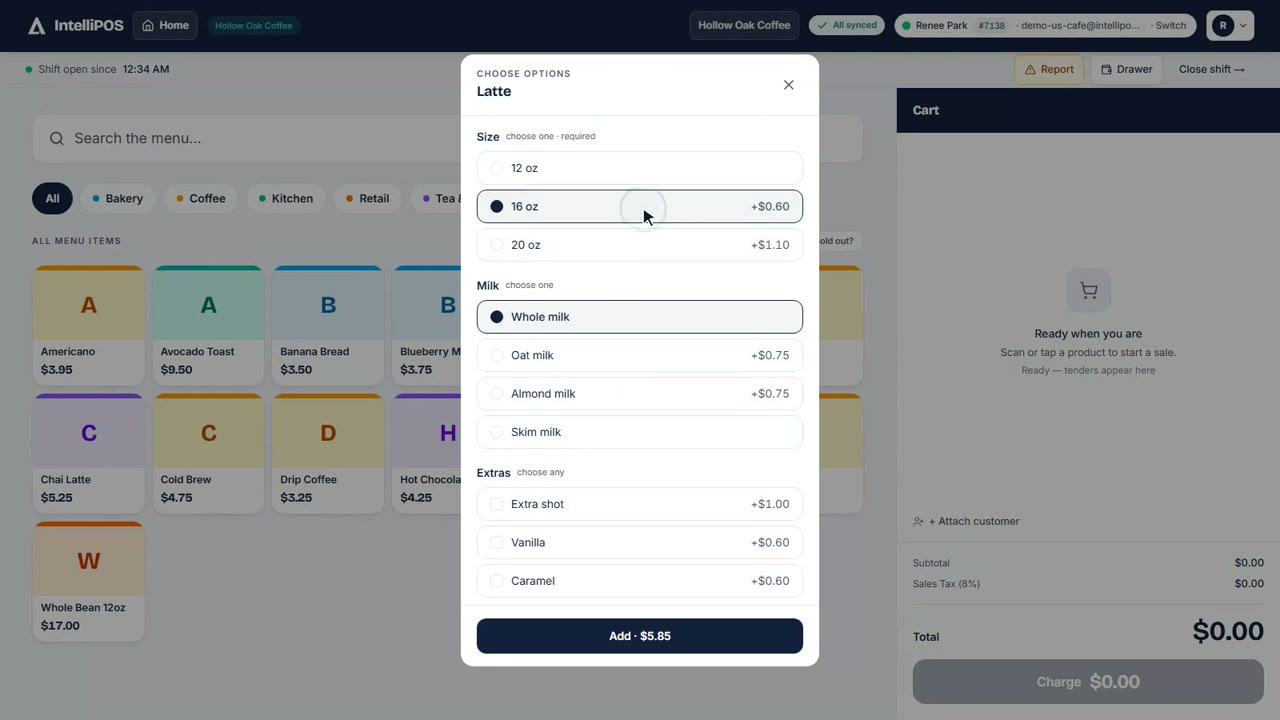
Add itemsTap a product tile, search by name, or scan a barcode with a USB scanner.
Open-price itemsFor weighed/bulk goods, the cashier types the price when prompted.
DiscountsApply a per-line discount on a cart line, or an order discount before payment.
Take paymentTap Charge → choose tender(s). Split across cash / card / mobile-money lines and add a tip.
Give changeOver-tender on cash and the change is shown; it's tracked so your drawer reconciles correctly.
Park a saleHold a cart to serve another customer, then resume it from the parked-carts strip.
Gift receiptToggle gift mode to print a receipt with prices hidden.

Shifts & cash drawer

Every cashier opens and closes their own drawer so cash is always accountable.

TaskHow / where
Open a shiftCount the opening cash and confirm — the register only sells once a shift is open.
Switch cashierUse the cashier switcher in the top bar; each person unlocks with a 6-digit PIN.
Pay-in / pay-out / dropCheckout → Drawer to record cash added, removed, or dropped to the safe.
Close the shiftCount the drawer, enter the total — expected vs counted variance is shown, with an end-of-day (Z) report.

Products & stock

Keep the catalog and stock accurate without spreadsheets.

TaskHow / where
Add / edit productsDashboard → Products. Name, price, barcode, category, image, stock.
Bulk importDashboard → Products → Import a CSV (download the sample to match the columns).
Adjust stockDashboard → Stock: record an adjustment with a reason (write-off, found, correction…).
Stock takeDashboard → Stock → start a count; enter counted quantities; completing it applies the differences.
Low-stock alertsSet a reorder level on a product to surface it when it runs low.

Customers & loyalty

Optional — turn it on in Settings if you want points and store credit.

TaskHow / where
Add a customerDashboard → Customers, or add one at the till from the customer picker.
Earn pointsAttach a customer to a sale; points accrue at the rate you set in Settings.
Redeem pointsAt checkout, redeem the customer's points toward the total.
Store creditIssue or spend store credit (e.g. from a refund) as a tender.

Refunds

Refund whole sales or individual items, partially or in full.

TaskHow / where
Find the saleCheckout → Receipts (look up by short code), or open it from the sale's receipt.
Refund itemsPick the lines and quantities to return; the refundable amount is capped automatically.
Refund to creditOptionally return the value as store credit instead of cash, when a customer is attached.

Reports

Owner/manager view of how the shop is doing. Export anything to CSV.

TaskHow / where
Sales overviewDashboard → Reports: totals, trend and payment-method mix for a date range.
Top items & marginSee best sellers and gross margin by product.
Cashier performanceSales by cashier, with shift variances.
Busiest hoursAn hour-by-day heatmap to plan staffing.
ExportEvery report and the sales list export to CSV.

Team, roles & PINs

Owners and managers control who can do what.

TaskHow / where
RolesOwner (full control), Manager (products, team, reports), Cashier (the till only).
PINsEach staff member gets a 6-digit PIN to unlock the register quickly on a shared device.
SuspendTemporarily block someone from the dashboard and till without deleting them — restore any time.
Multiple shopsStaff who work at more than one business switch between tills from the top-bar switcher.

AI Analyst

Ask your shop's numbers in plain language — in Somali or English.

TaskHow / where
WhereDashboard → AI Analyst.
Examples“What were my top sellers last week?”, “How's this month vs last?”, “Which cashier sold the most today?”
Honest by designIt only reads your own shop's reports — it can't run arbitrary queries or change anything, and it says so when it can't answer.

Working offline

The till keeps selling when the internet drops — nothing is lost.

TaskHow / where
Selling offlineRing sales as normal; they're saved on the device and a chip shows how many are waiting to sync.
SyncingWhen you're back online they sync automatically, with no duplicates. “Sync now” forces it.
Needs attentionIf a queued sale is rejected on sync (e.g. an item sold out), a panel lets you retry or discard it.
Closing offlineYou can't close a shift while sales are still waiting to sync, so the drawer count stays correct.