Payments & tenders
Cash, card, split payments, and change.Cash, mobile money, card, split payments, and change.
When you tap Charge, choose how the customer is paying.
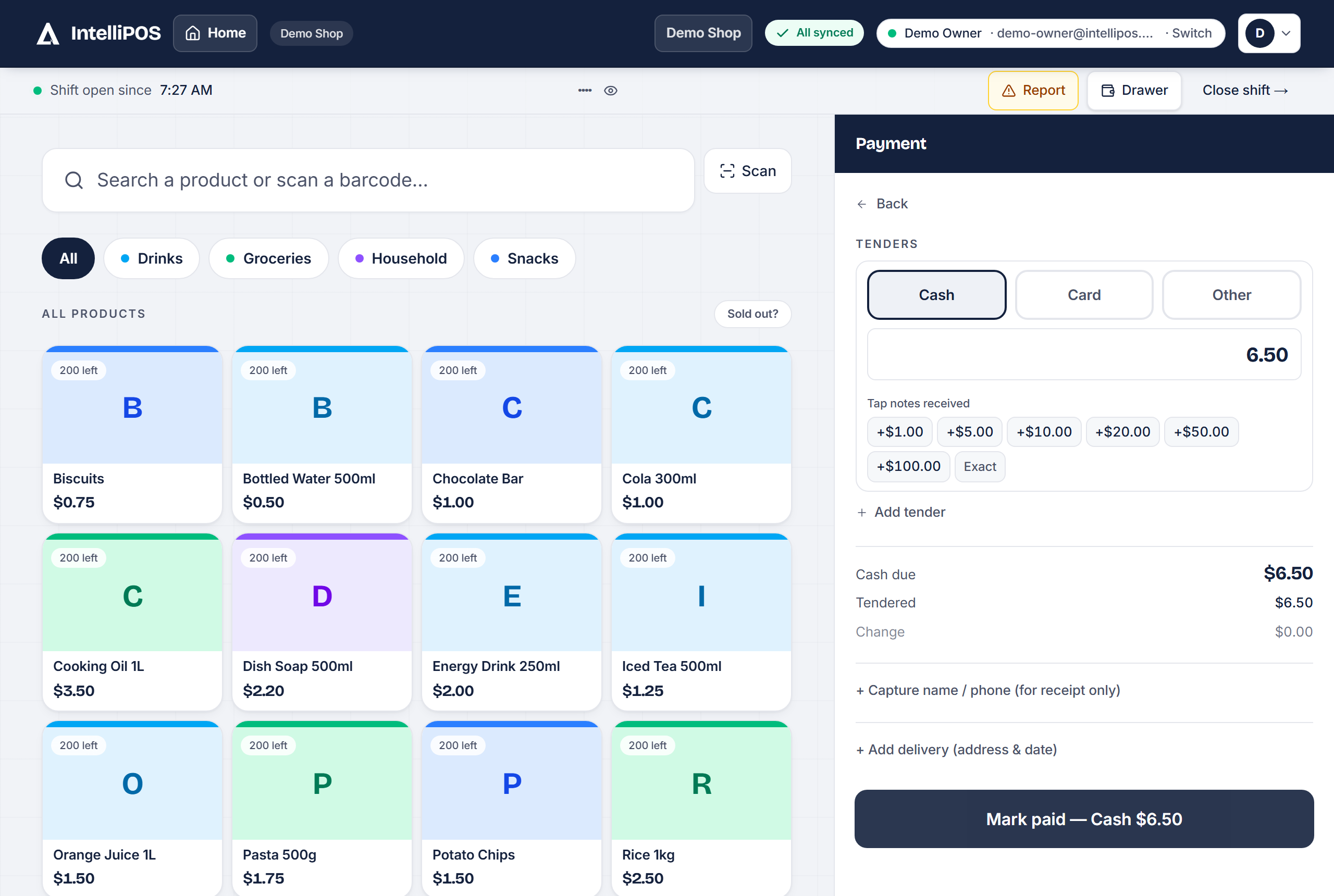
The payment types
- Cash — type what they handed you and IntelliPOS shows the change to give. Exact cash is one tap when they pay the exact amount.
- Card — recorded as a card payment. In the United States and Canada you can go further and take the card on your own reader, so the sale confirms itself and the money lands in your bank: see Taking card payments on a reader.
- Gift card — once you sell gift cards, a customer pays with one like cash: scan its QR code or type its number. See Gift cards below.
- Customer credit — the customer takes the goods now and pays later. See Customer credit.
Which payment buttons the till shows
Settings → Payments & tax → Payment methods you accept. Tick the ones you take; the till shows only those. Cash can't be switched off, so a till can always settle a sale.
Split payments
A customer can pay part cash and part card (or any mix). Add the first tender, then add another for the rest — IntelliPOS tracks the balance until the sale is fully paid.
Gift cards
Sell gift cards and take them as payment — digital cards the till makes, or your own plastic ones. The owner switches them on once in Settings → Features & add-ons → Gift cards, and every till shows them from then on. Funds never expire and there are no fees, ever.
Selling a card. On an empty cart, tap Sell a gift card — on a phone it sits at the bottom of the till, and at a restaurant it's at the top of the floor, next to the tables. Choose New digital card and the till makes a new number, or Scan a card for one of your own plastic cards. Pick the amount and take payment with cash or card. A digital card's number is shown once, with a QR code: print it on the receipt printer, or let the customer take a photo. Every receipt after that shows only its last four digits (••1234). To add money to a card the customer already has, choose Scan a card and scan or type its number.
Sending the number. Under a new digital card's number, type the customer's mobile number or email and tap Send: they get the number from your shop by text, or by email with the QR code attached. A customer already on the sale is filled in for you. It goes out the ways your till sends receipts (Settings → Receipts & printing → How customers get their receipt), works for an hour after the card is sold, and needs a connection. A lost card reissued from the Gift cards page can be sent the same way.
A gift card is sold on its own, never in the same sale as other items, and selling one needs a connection, so a number can never be sold twice or go over the limits below. Taking a gift card as payment works offline.
Taking a card as payment. On the payment screen tap Gift card, then scan the QR code or type the number. The till shows what's on the card and fills in the right amount: the whole sale when the card covers it, or what the card holds, with the rest paid another way. The receipt shows what the card paid and what's left on it. Offline, the till uses the balance it last saw, marks the receipt as of this till, and settles it with the card when it syncs.
One card spent on two tills during an outage. If two tills are offline and both take the same card, the second to sync finds less on it than it expected. When the customer is on the sale and you sell on credit, the rest goes on their tab by itself. Otherwise the sale waits in Sync status (the pill at the top of the till) with two answers: Took the rest in cash — the cash joins the drawer count — or Write it off, for an owner or manager: the rest is booked as a discount on that sale, in their name. The sale syncs at once and its history says what happened. A tip can't be written off; take it in cash.
A card sold isn't a sale. The money counts when the card is spent, so your sales, tax and reports stay true. The Z-report shows Gift cards sold on its own line, and cash taken for a card is in the drawer like any other cash.
Refunds. Refund something that was paid by gift card and the money goes back onto the card. To refund a gift card itself, open the receipt of the sale that loaded it and tap Refund this gift card: what's left on the card goes back the way it was paid (cash from the drawer, or back to the card that paid) and comes off the card. A card that has been spent can only give back what's left, and refunding a gift card needs a connection.
Lost or stolen card. Open Gift cards in the menu, find the card by its last four digits, and tap Reissue to a new number. The whole balance moves to a new digital number, shown once, and the old number stops working that moment.
Your card list and your accountant. On the Gift cards page the owner can tap Download card list: a spreadsheet of every card — last four digits, balance, when it was last used — with what you owe in total at the bottom. The Tax page and the accountant download show what you owed card holders at the start and end of each month, and what was sold and spent in between. A customer's profile lists the cards sold to them.
Limits. A card holds up to $2,000 and takes up to $2,000 of top-ups a day, and your business sells up to $10,000 of gift cards a day. The limits are the same for every business: they keep store gift cards clear of the stricter rules for prepaid money cards.
If you sell plastic cards, use cards printed with long random numbers, never short or numbered-in-order ones: whoever knows a card's number can spend it.
Switching gift cards off can't happen while cards still hold money: customers must always be able to spend what they paid for.
About recording payments
IntelliPOS records which method was used; for card, the cashier confirms the payment went through on the card machine, then records it. Your daily shift report lets you reconcile each method against your own records.
When you tap Charge, choose how the customer is paying.
The payment types
- Cash — type what they handed you and IntelliPOS shows the change to give. Exact cash is one tap when they pay the exact amount.
- Mobile money (in countries that use it — EVC Plus, ZAAD, M-Pesa, MTN and others) — recorded as a mobile-money payment. Where wallets aren't used, the till simply doesn't offer them.
- Card — recorded as a card payment. In the United States and Canada you can go further and take the card on your own reader, so the sale confirms itself and the money lands in your bank: see Taking card payments on a reader.
- Credit (Dayn) — the customer takes the goods now and pays later. See Credit (Dayn).
Which payment buttons the till shows
Settings → Payments & tax → Payment methods you accept. Tick the ones you take; the till shows only those. Cash can't be switched off, so a till can always settle a sale.
Split payments
A customer can pay part cash and part mobile money (or any mix). Add the first tender, then add another for the rest — IntelliPOS tracks the balance until the sale is fully paid.
About recording payments
IntelliPOS records which method was used; for mobile money and card, the cashier confirms the payment went through on the phone or the card machine, then records it. Your daily shift report lets you reconcile each method against your own records.
When you tap Charge, choose how the customer is paying.
The payment types
- Cash — type what they handed you and IntelliPOS shows the change to give. Exact cash is one tap when they pay the exact amount.
- Mobile money (in countries that use it — EVC Plus, ZAAD, M-Pesa, MTN and others) — recorded as a mobile-money payment. Where wallets aren't used, the till simply doesn't offer them.
- Card — recorded as a card payment. In the United States and Canada you can go further and take the card on your own reader, so the sale confirms itself and the money lands in your bank: see Taking card payments on a reader.
- Customer credit — the customer takes the goods now and pays later. See Customer credit.
Which payment buttons the till shows
Settings → Payments & tax → Payment methods you accept. Tick the ones you take; the till shows only those. Cash can't be switched off, so a till can always settle a sale.
Split payments
A customer can pay part cash and part mobile money (or any mix). Add the first tender, then add another for the rest — IntelliPOS tracks the balance until the sale is fully paid.
About recording payments
IntelliPOS records which method was used; for mobile money and card, the cashier confirms the payment went through on the phone or the card machine, then records it. Your daily shift report lets you reconcile each method against your own records.