Ringing a sale
The fastest path from tapping products to taking payment.
The till is built for speed — every tap is instant, online or offline.
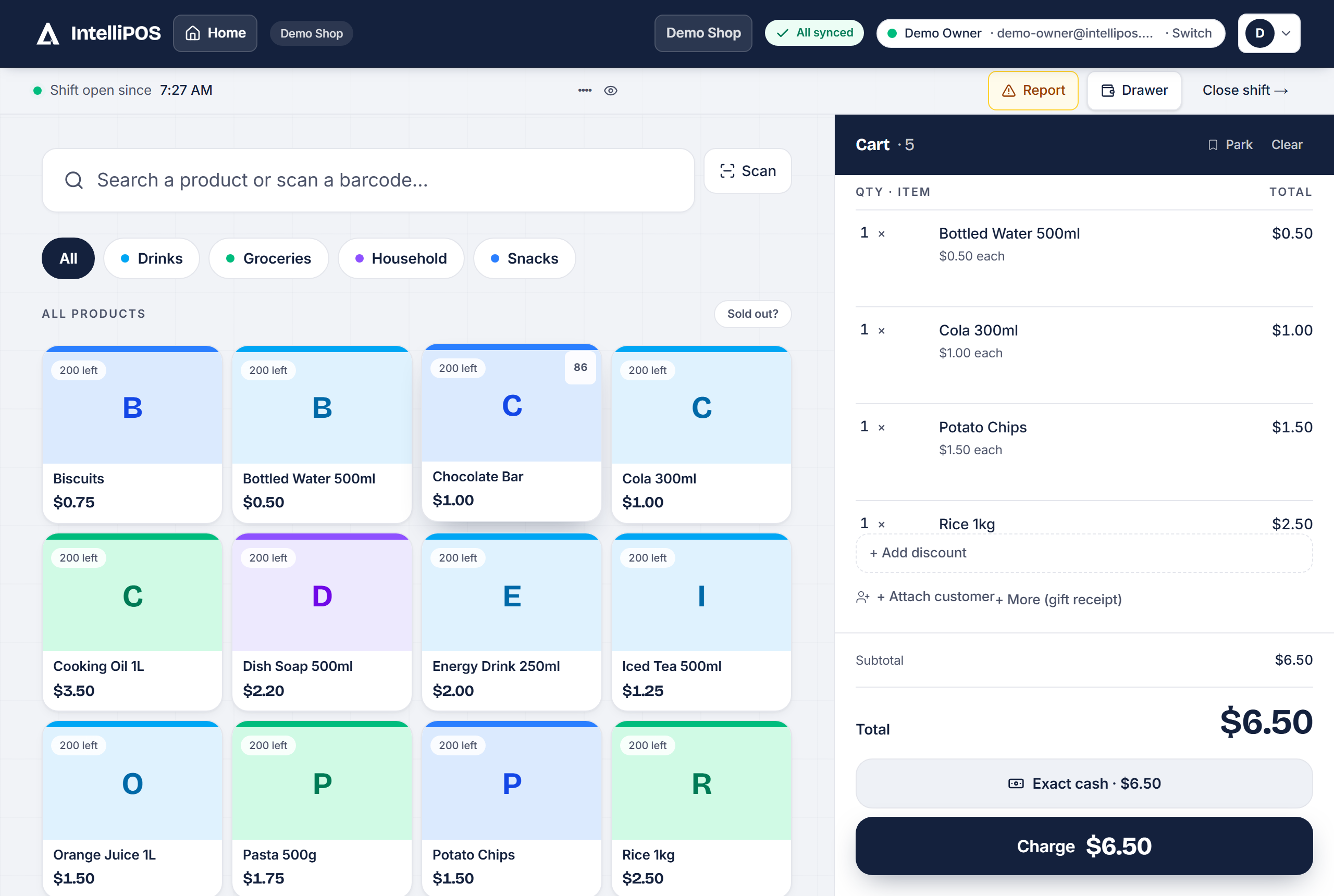
Ring a sale
- Tap products (or scan barcodes) to add them to the cart.
- Adjust quantity by tapping the line and typing the number, or use + / −.
- For weighed goods (sold by kg, g, lb or oz), enter the weight when prompted — or tap Read from scale on a till with a connected scale. The till only takes a weight the scale reports as steady; otherwise you type it.
- Tap Charge to take payment.
If the till reloads mid-sale (a refresh, an update, a flat battery), the cart comes back exactly as it was.
Here's the whole thing, start to receipt — about fifteen seconds:
Handy shortcuts
- Search finds a product by name or barcode instantly — it works offline too.
- Open price lets you sell a one-off item at a typed price.
- Park a cart holds a sale aside (customer stepped away) and recalls it later — nothing is lost. Watch it:
- Attach a customer links the sale to someone for loyalty or customer credit.
- Ctrl + K opens quick search from anywhere on a keyboard till.
- Sold out? on a product tile marks it sold out (cafés and restaurants). It comes back by itself when your next business day starts, works offline, and shows as Sold out on your website the same minute.
Refunds
Open the receipt (from Recent receipts or the Sales list) and choose Refund items. You can refund the whole sale or just some lines; the money and stock are corrected automatically. A cash refund pays out of an open drawer: if no shift is open, the receipt page asks for the counted float and opens one right there — online or offline — then runs the refund.
Who may refund: a cashier can refund only sales they rang up. The owner can make refunds owner-and-manager only under Settings → Till & drawer → Staff money rules → Cashiers can process refunds (on by default); the staff discount limit is set in the same card.
Receipt numbers
Every sale has a number that counts up for your business (#1, #2, #3 …). It prints on the slip and the PDF, shows on the receipt page, in the email, in Recent receipts, the Sales list and the accountant export — the same number everywhere, so a customer or an accountant can name a sale. Search Receipts by number ("#1234") or by the old eight-character reference. A sale rung offline prints the reference; the moment it syncs, the copy on the till picks up its number.
See also: Payments & tenders · Receipts & printing.
The till is built for speed — every tap is instant, online or offline.
Ring a sale
- Tap products (or scan barcodes) to add them to the cart.
- Adjust quantity by tapping the line and typing the number, or use + / −.
- For weighed goods (sold by kg, g, lb or oz), enter the weight when prompted — or tap Read from scale on a till with a connected scale. The till only takes a weight the scale reports as steady; otherwise you type it.
- Tap Charge to take payment.
If the till reloads mid-sale (a refresh, an update, a flat battery), the cart comes back exactly as it was.
Here's the whole thing, start to receipt — about fifteen seconds:
Handy shortcuts
- Search finds a product by name or barcode instantly — it works offline too.
- Open price lets you sell a one-off item at a typed price.
- Park a cart holds a sale aside (customer stepped away) and recalls it later — nothing is lost. Watch it:
- Attach a customer links the sale to someone for loyalty or credit (Dayn).
- Ctrl + K opens quick search from anywhere on a keyboard till.
- Sold out? on a product tile marks it sold out (cafés and restaurants). It comes back by itself when your next business day starts, works offline, and shows as Sold out on your website the same minute.
Refunds
Open the receipt (from Recent receipts or the Sales list) and choose Refund items. You can refund the whole sale or just some lines; the money and stock are corrected automatically. A cash refund pays out of an open drawer: if no shift is open, the receipt page asks for the counted float and opens one right there — online or offline — then runs the refund.
Who may refund: a cashier can refund only sales they rang up. The owner can make refunds owner-and-manager only under Settings → Till & drawer → Staff money rules → Cashiers can process refunds (on by default); the staff discount limit is set in the same card.
Receipt numbers
Every sale has a number that counts up for your business (#1, #2, #3 …). It prints on the slip and the PDF, shows on the receipt page, in the email, in Recent receipts, the Sales list and the accountant export — the same number everywhere, so a customer or an accountant can name a sale. Search Receipts by number ("#1234") or by the old eight-character reference. A sale rung offline prints the reference; the moment it syncs, the copy on the till picks up its number.
See also: Payments & tenders · Receipts & printing.