Gym / fitness
Memberships, check-in, renewals and the pro shop.
Run your gym on IntelliPOS
A gym runs on two things: members and the front desk. In the dashboard, the Memberships group holds Members and Plans, and the small shop you sell water and supplements from is called Pro shop.
Membership plans
Open Plans and tap Add a plan. Give it a Plan name, a price, and how long it Lasts (days) — quick picks are Day pass, 1 week, 1 month, 3 months, 6 months and 1 year.
- Visits (optional): leave it empty for unlimited visits until the term ends, or enter a number to sell a visit pack that counts down by one at each check-in. A day pass is a pack of 1.
- Edit only changes future sales — members who already bought keep the price they paid.
- Archive hides a plan from sale but keeps its name on old receipts; Restore brings it back.
Only the owner sets plans, unless the owner turns on Let managers manage membership plans in Settings.
Plans that renew by themselves
Where your business takes cards on a connected card reader, a plan can be set to Auto-renews (card on file). When the first term is paid on the reader, tick Auto-renew with this card: the card is then charged every term until someone stops it. The member's page shows Auto-pay on, and owners and managers can Stop auto-pay or Resume auto-pay there. While auto-pay is on, Renew is replaced by an Auto-pay tag, so nobody charges the member twice.
The front desk (Check-in)
A gym's till opens straight to Check-in.
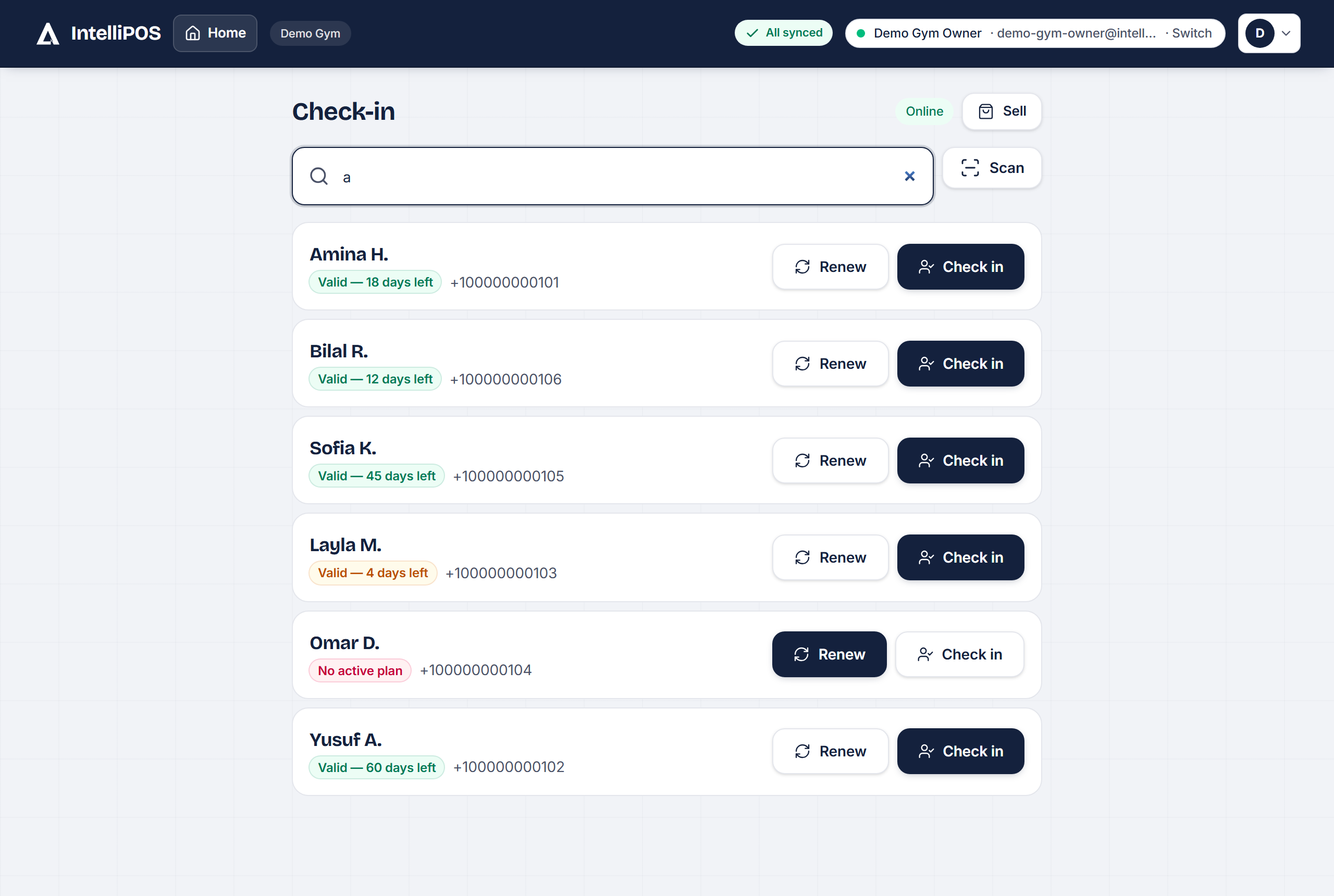
- Type a name or phone number, then tap Check in. A coloured banner shows their standing — Active, Expiring soon, Expired or Frozen — with the days or visits left.
- An expired member is still checked in; the banner tells you to offer a renewal (or to sell a new pack when no visits are left).
- Scan reads the QR on a member's card with the device camera (only on devices that have one).
- When you're not searching, Here today lists everyone checked in today, with the time.
Check-in works offline: search uses the member list saved on the device, and check-ins sync when you reconnect.
Adding a member at the desk
Search the name. If nobody matches, tap Add "name" as a member — the name is filled in — add a Phone (optional), pick a plan and a Payment method, then Add & take payment. For cash, enter Cash received and the screen shows the Change.
- Every membership is a real sale in the open drawer, so a shift must be open.
- Offline, the sale is saved and sent when you reconnect.
- Add member on the Members page does the same from the dashboard.
- Taking payment is for the front desk, managers and owners; a trainer can check members in.
Member deals
Discount (optional) takes an amount off the plan price. Front-desk staff can discount up to the Staff discount limit (%) set in Settings; managers and owners have no limit.
Sales tax on memberships (US & Canada)
Many states and provinces tax memberships and day passes; many don't. Where yours does, open Plans, edit the plan and tick Charges sales tax (the box appears once your rate is set under Settings → Payments & tax; where your tax is VAT or GST the box says so). From then on the rate is added on top of the plan price — at the desk, on the card reader, on your website's join page and on every auto-pay renewal — after any deal, and the receipt prints it as its own line.
- Plans you leave unticked don't change: no tax, and their receipts look exactly as before.
- The Overview's Membership revenue card says how much of the month's figure is tax; the Tax page and the accountant download count it with the rest, so what you file is one number.
- A refund from the receipt gives the tax back too.
- Members on auto-pay see the tax as its own line on the invoice from your card processor. A renewal already billed keeps the rate it was billed at; the next one follows your current rate, and when you change the rate Settings tells you how many auto-pay members move to it from their next bill.
Membership terms at the desk
Write your membership terms once, under Plans or on the Website tab (the join page shows the same text).
From then on a new member agrees to them when they pay at the desk:
- With a Customer display set up, the terms appear on it by themselves with one I agree button — the member reads and taps, and the desk shows they agreed on the display.
- With no customer display, the staff member ticks that the member read and agreed; the tick is witnessed by whoever is on the desk by PIN.
- It's asked once per member per version. A renewal never asks again unless you've changed the wording since — then the member is asked at that renewal.
- The member's details show when they agreed and which version; the receipt says Agreed to membership terms with the date, and the WhatsApp or email copy carries it too.
- Editing the terms makes a new version. The old wording is kept, so you can always show exactly what a member agreed to.
- Offline it works the same: the agreement is saved with the sale and sent when you reconnect.
This isn't a signature pad. A gym that needs a signed liability waiver keeps its e-sign process for that; the terms here are the membership agreement.
Renew or change plan
Tap Renew next to the member, or tap their name → Renew / change plan. Pick the same plan to renew, or a different one to switch them from now on. An early renewal starts the day after the current term ends, so no paid days are lost; a lapsed member starts again from today.
A member's details at the desk
Tap a member's name for their standing, Card (their membership card), Edit (fix a name or phone — works offline) and their Payment history (front-desk staff see the last 3 months; owners and managers see all of it).
Freeze, cancel and reactivate requests
From the member's details choose Freeze, Cancel or Reactivate, write a reason and tap Send (this needs a connection). Sent by front-desk staff, it goes to the owner as Sent for owner approval; sent by an owner or manager, it applies at once. Waiting requests sit at the top of Members under Change requests waiting, each with Approve and Reject, and the Members link in the menu shows how many are waiting. Cancelling does not refund money already taken. To give it back, refund the term from its receipt (below).
Refund a membership
Open the term's receipt — from the member's details tap Receipt on that term, or find the sale in Sales — and tap Refund this membership. The money goes back the way it came — a card payment to the card, cash from the open drawer — or as store credit if you tick that. The term is cancelled at the same moment (any auto-pay on it stops too), and the month's membership revenue comes down by the amount. Offline, the refund is saved on the device and sent once when you reconnect — never twice.
The Members page
Owners and managers see the totals (Members, Active, Expiring soon — next 7 days — and New this month), a Membership health bar and Busiest hours · last 30 days. Filter All, Active, Expiring, Expired or Frozen for a renewal or win-back list in one tap. Each row has Card and Renew; a member's full page lists every term they've paid for. The owner can bring in an existing list with Import members.
Winning members back
Winning back lists members still paying who haven't checked in for 10 days or more; Message opens WhatsApp with a friendly note ready to send. For a morning email of members whose plan ends within 7 days, turn on Renewal reminders in Settings.
The membership card on WhatsApp
Card on any member shows their Membership card with its QR code. Send on WhatsApp sends them a link to it (when they have a phone number), so they show it at the desk; Print card prints it.
Starter plans from AI
While the setup checklist on the Overview is still showing and you have no products, the owner can tap Describe the business · AI, describe the gym, and tap Draft my catalog (1 AI credit). Untick anything you don't want and tap Load. Plans are added only if you have none yet, pro-shop items only if you have no products yet — and all of it can be edited or deleted.
The pro shop
Tap Sell on the Check-in screen for the normal till — water, supplements, snacks. Your items live under Pro shop → Products. To get back, choose Member check-in from the account menu. Members who joined and paid on your website carry a Joined online tag at the desk.
A gym runs on two things: members and the front desk. In the dashboard, the Memberships group holds Members and Plans, and the small shop you sell water and supplements from is called Pro shop.
Membership plans
Open Plans and tap Add a plan. Give it a Plan name, a price, and how long it Lasts (days) — quick picks are Day pass, 1 week, 1 month, 3 months, 6 months and 1 year.
- Visits (optional): leave it empty for unlimited visits until the term ends, or enter a number to sell a visit pack that counts down by one at each check-in. A day pass is a pack of 1.
- Edit only changes future sales — members who already bought keep the price they paid.
- Archive hides a plan from sale but keeps its name on old receipts; Restore brings it back.
Only the owner sets plans, unless the owner turns on Let managers manage membership plans in Settings.
Plans that renew by themselves
Where your business takes cards on a connected card reader, a plan can be set to Auto-renews (card on file). When the first term is paid on the reader, tick Auto-renew with this card: the card is then charged every term until someone stops it. The member's page shows Auto-pay on, and owners and managers can Stop auto-pay or Resume auto-pay there. While auto-pay is on, Renew is replaced by an Auto-pay tag, so nobody charges the member twice.
The front desk (Check-in)
A gym's till opens straight to Check-in.
- Type a name or phone number, then tap Check in. A coloured banner shows their standing — Active, Expiring soon, Expired or Frozen — with the days or visits left.
- An expired member is still checked in; the banner tells you to offer a renewal (or to sell a new pack when no visits are left).
- Scan reads the QR on a member's card with the device camera (only on devices that have one).
- When you're not searching, Here today lists everyone checked in today, with the time.
Check-in works offline: search uses the member list saved on the device, and check-ins sync when you reconnect.
Adding a member at the desk
Search the name. If nobody matches, tap Add "name" as a member — the name is filled in — add a Phone (optional), pick a plan and a Payment method, then Add & take payment. For cash, enter Cash received and the screen shows the Change.
- Every membership is a real sale in the open drawer, so a shift must be open.
- Offline, the sale is saved and sent when you reconnect.
- Add member on the Members page does the same from the dashboard.
- Taking payment is for the front desk, managers and owners; a trainer can check members in.
Member deals
Discount (optional) takes an amount off the plan price. Front-desk staff can discount up to the Staff discount limit (%) set in Settings; managers and owners have no limit.
Renew or change plan
Tap Renew next to the member, or tap their name → Renew / change plan. Pick the same plan to renew, or a different one to switch them from now on. An early renewal starts the day after the current term ends, so no paid days are lost; a lapsed member starts again from today.
A member's details at the desk
Tap a member's name for their standing, Card (their membership card), Edit (fix a name or phone — works offline) and their Payment history (front-desk staff see the last 3 months; owners and managers see all of it).
Freeze, cancel and reactivate requests
From the member's details choose Freeze, Cancel or Reactivate, write a reason and tap Send (this needs a connection). Sent by front-desk staff, it goes to the owner as Sent for owner approval; sent by an owner or manager, it applies at once. Waiting requests sit at the top of Members under Change requests waiting, each with Approve and Reject, and the Members link in the menu shows how many are waiting. Cancelling does not refund money already taken.
The Members page
Owners and managers see the totals (Members, Active, Expiring soon — next 7 days — and New this month), a Membership health bar and Busiest hours · last 30 days. Filter All, Active, Expiring, Expired or Frozen for a renewal or win-back list in one tap. Each row has Card and Renew; a member's full page lists every term they've paid for. The owner can bring in an existing list with Import members.
Winning members back
Winning back lists members still paying who haven't checked in for 10 days or more; Message opens WhatsApp with a friendly note ready to send. For a morning email of members whose plan ends within 7 days, turn on Renewal reminders in Settings.
The membership card on WhatsApp
Card on any member shows their Membership card with its QR code. Send on WhatsApp sends them a link to it (when they have a phone number), so they show it at the desk; Print card prints it.
Starter plans from AI
While the setup checklist on the Overview is still showing and you have no products, the owner can tap Describe the business · AI, describe the gym, and tap Draft my catalog (1 AI credit). Untick anything you don't want and tap Load. Plans are added only if you have none yet, pro-shop items only if you have no products yet — and all of it can be edited or deleted.
The pro shop
Tap Sell on the Check-in screen for the normal till — water, supplements, snacks. Your items live under Pro shop → Products. To get back, choose Member check-in from the account menu. Members who joined and paid on your website carry a Joined online tag at the desk.